eBay Picture Manager Download Helper (instructions below)
Provided by rob@robshelp.com creator/operator of FreeForm at RobsHelp.com and EAPH.com hosting.Important: You may need to use FireFox as your web browser (First Things First)
|
Status
| |
| Errors |
|
Instructions First Things First: What do you need the files for? You may use the Download Helper for either or both:
If you have only used Picture Manager for the standard up to 12 pictures per listing and have undertaken no additional effort to display them within the body of item descriptions. Then you probably only need the largest size of each picture stored on eBay. That's what eBay provides in the zip files so you don't need the Download Helper unless you have had problems downloading those zip files from eBay. Even then you'd only need to download/gather URLs if you plan to revise your item listings to avoid paying eBay Picture Hosting fees -or- you were depending on eBay to keep your photos for potential future use. There is a "Largest Only" size choice here in the Download Helper to match your needs.If you have used any Picture Manager pictures within the body of your item descriptions either by:
Then it may be important for you to use the Download Helper to either download or gather URLs for ALL the sizes you have used in your item descriptions. There are up to six potential sizes you may have used: Original, Supersize (800 pixels), New Preview Size (500 pixels), Standard (400), Preview(200), and Thumbnail(96). You'll need to be sure to account for all the sizes you've actually used.If you plan to revise item descriptions, two extremely important criteria must be met to have any hope of using tools to help you:
To demonstrate, the simplest type of search and replace might find every instance of an eBay hosted URL in the item description and replace only the path portion. Using the above examples this:If you do need to download your pictures and plan to perform item description revisions... Internet Explorer and possibly other web browsers change the upper case file name extensions eBay uses (JPG,GIF,TIF,PNG,BMP) to lower case during the download process. The Mozilla FireFox web browser keeps them the same. So, it is best if you plan to revise item descriptions that you use FireFox as your web browser when using the Download Helper. If you can not use FireFox for any reason, just remember that the file names (extensions) won't exactly match what was used in item descriptions.More about collecting URLs to use for transloading The process generally referred to as transloading consists of "reading" files from one web host and writing them to another. That avoids the need to download from one host then upload to another. A transloader either captures URLs from web pages or accepts entry of URLs. Those URLs combined with FTP host login information entered are used to perform the copy to the FTP host.If you do decide to collect URLs you'll need to be very careful not to lose the accumulated URLs stored in the blue background "Unique URLs" box above. Use the Save button under the Unique URLs box which should prompt for downloading a file named "Collected.txt" to your computer. Confirm there are contents in that file before exiting the Download Helper. For safety sake, after collecting URLs for each eBay folder perform a new save to overwrite the one already on your computer. Then, if you run into any type of problem such as losing your Internet connection you won't need to start completely over.If you need to perform the overall process of downloading or gathering URLs over several sessions you may carefully paste the information in from your "Collected.txt" file into the respective boxes and continue from there. The only issue with that is the accumlated file count and megabytes will become inaccurate. |
|
Getting Ready: Get to Picture Manager on eBay
1. Log into your My eBay from the link located in the top right corner of most eBay pages
|
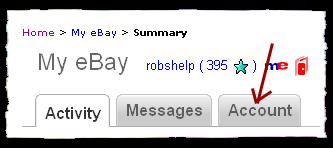
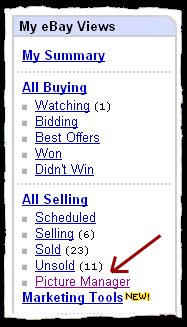
|
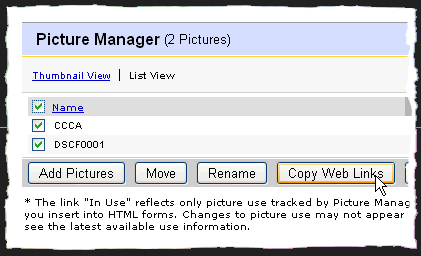
Picture Manager will look something like this (choose List View) 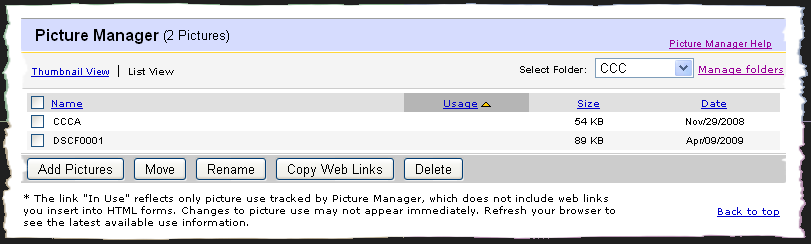
|
|
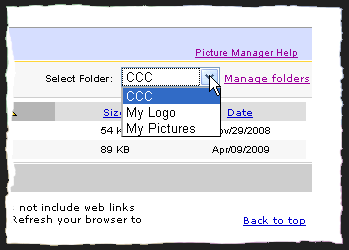
Getting Ready: Get familiar with where your photos are stored
* The link "In Use" reflects only picture use tracked by Picture Manager, which does not include web links you insert into HTML forms. Changes to picture use may not appear immediately. Refresh your browser to see the latest available use information.Understand you can not entirly depend on the "Usage" column being filled in for pictures you may have used in other than eBay standard places on the selling (View Item) pages. For example, if you have used Picture Manager to obtain URLs for display of pictures in the body of your item descriptions then those will not show a usage. |
|
Getting Ready: Remember what picture sizes you may have used
eBay stores versions of each picture in up to 6 different sizes. If you used eBay hosted pictures in non-standard ways as I describe above, it's possible for you to have used any of the following sizes. The ones marked (CLEVER) mean you'd have needed to be clever to figure out how to use them because eBay doesn't display their URLs in Picture Manager.
|
|
Getting Ready: Create a folder on your computer for the copied (downloaded) pictures
If you will be downloading pictures, I suggest creating a folder on your computers "desktop" so will be easy to find. Right click once on the desktop and in the pop-up highlight "New" then click on "Folder". That will create a folder probably named "New Folder". Right click once on the new folder and choose "Rename" - type in "eBayPictures". Any name will do but I will be referring to it with that name. |
Using the eBay Picture Manager Download Helper
Note: Part of the problem you could have had using eBay's zip files may be a result of their large file size. If so, you may find it necessary to select fewer pictures at a time before using the Copy Web Links button. Be sure to make a note of where you left off in the list of files so you can begin the next group at that point.
A pop-up window looking something like this should result: 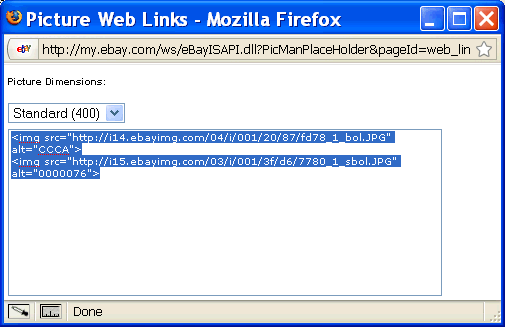
4. Select Standard(400) if is not already selected for you: 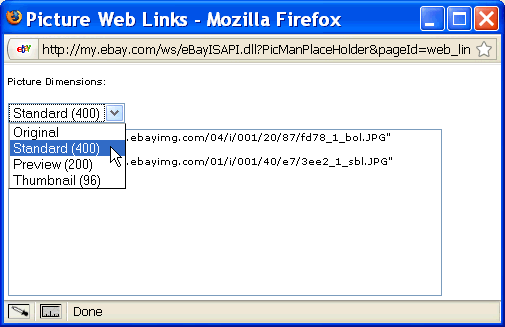
Note: The Standard size contains the URLs from which the other size versions can be derived so we only need the Standard Web Links (the Download Helper takes care of the rest).5. Copy all the web links out of the box. If the web links are not all highlighted, right click once on any portion of the text in the box and choose "Select All". Then right click once again on any of the text and choose "Copy".
6. Leave the eBay window open and switch to the eBay Picture Manager Download Helper window. 7. In the pink background area type in the Picture Manager folder name. 
That will help you keep track of what folders you've already gathered. 8. Click the Clear button 
That clears out any previous entries to help confirm you've successfully pasted in new entries. 9. Paste in what you copied from eBay (right click once in the empty box and choose Paste). 
10. Check the size(s) you want to gather 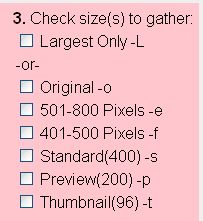
Note: If you check Largest Only then check marks in the other boxes are ignored. 11. Click Begin to start processing. 
12. When processing is complete you may either (or both) proceed to download the files gathered 
or (for safety sake) save the URLs gathered so far. 
Saving the gathered URLs is not absolutely necessary following each gather, it's just safer. Switch to the eBay Picture Manager window and start with another group (step 1 above) |
|
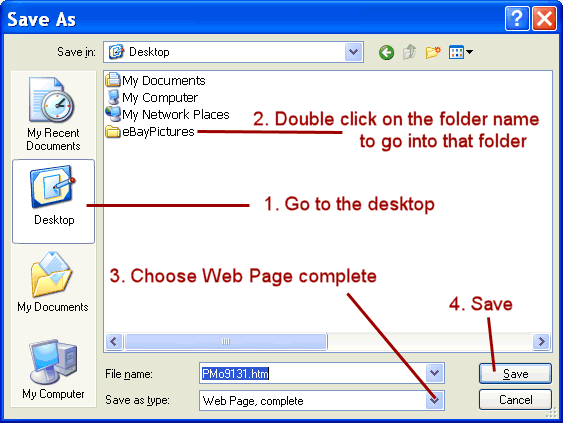
Performing the Downloads If you will be downloading, I suggested above creating a folder on your computers desktop so will be easy to find and name it "eBayPictures". Based on that being the folder, following is the procedure to follow for the actual downloading. When the new window opens after having clicked the Download button, wait for that page to complete loading. That may take quite a while depending on the number and size of the pictures being displayed within it. Then, in your web browser's tool bar click File, then Save As. That will produce a window like this:
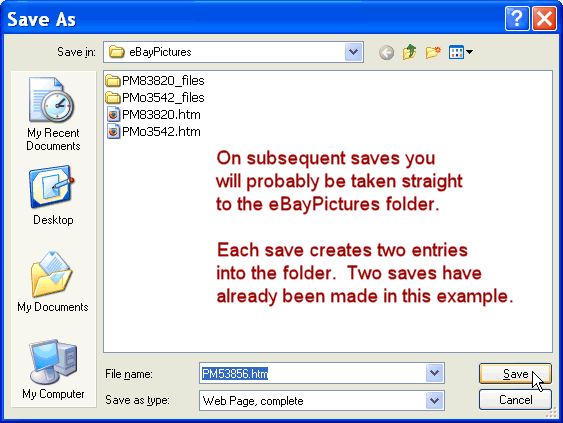
Note: Your's may look different and certainly will have more files and folders displaying in the window. At this point the the goal is to get to the eBayPictures folder you created. Click on the Desktop icon on the left, find the eBayPictures folder, then double click on it to designate it as the destination for the download.
|
|
After all the saving is done DO NOT DELETE ANY FILES UNTIL YOU FOLLOW THE PROCEDURE BELOW !!! Go to the desktop of your computer and double click on the eBayPictures folder to open it. It will look something like the following screen shot but probably with more files and folders in it. Rename each of the folders, removing the "_files" from its name. Right click once on the folder and choose "Rename" then delete off the _files from the end of its name: 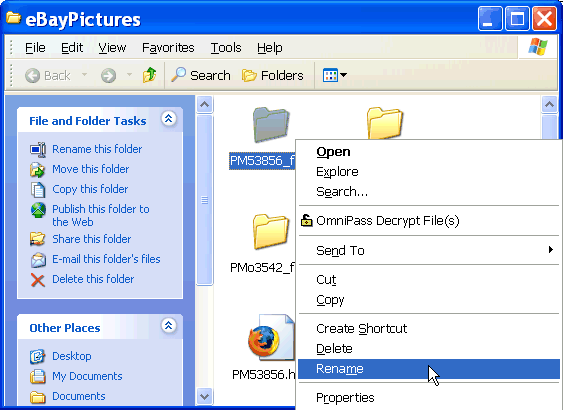
As you rename you will be prompted with a warning message. Go ahead by clicking "Yes". We want to get rid of the non-picture files and disassociating them from the folders is the first step necessary to accomplish that: 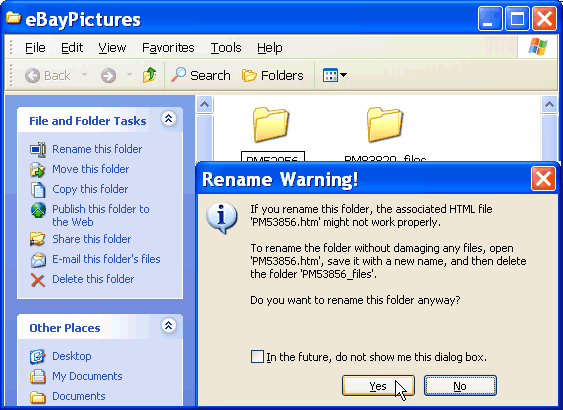
Repeat the rename for all the folders. Then it is safe to delete the non-picture files in the eBayPictures folder. Highlight them individually or as a group then right click and choose Delete: 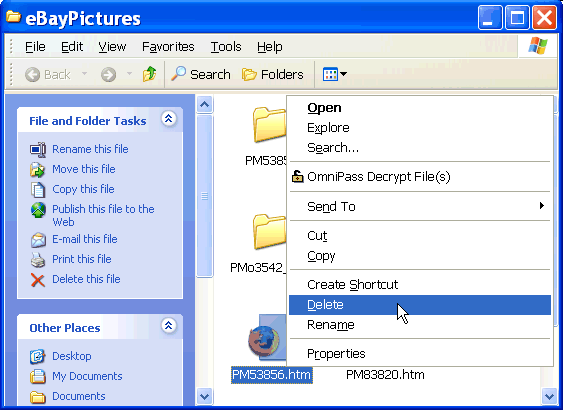
Alternatively you could copy (not move) all the picture files out of the folders Because your computer sets an association between the .htm file and the folder it corresponds with, moving pictures out of the "_files" folders will still lead to trouble unless you rename the folders first. You can, however, copy them out of the individual folders to other locations on your computer to avoid the renaming. Once all the pictures are copied out of all the folders you could safely delete the eBayPictures folder entirely. |
|
File Naming Convention used by the Download Helper When you fill in a folder name,
that name will have letters added to it in the download page. The numbers are meaningless, only present to prevent duplications. Let's say you entered "Group1" as the folder name, the file/folder name resulting will be different depending on the sizes you selected to gather:
You could use the folder names to help you decide what sizes are needed where. Also, eBay uses a file name convention by size which may help sort them out:
Note: The standard size will have other letters at the end of name but will include _1_ proceeding them. You may change the folder names as desired, but do NOT change the file names if you are planning on performing direct replacements of pictures displayed within item descriptions. |